Objects and task scenes
POSIM includes object descriptions for manipulation, inspection and interaction. Models are installed by the posim_object_models package alongside their mesh and configuration resources.
Explore the catalog
Local descriptions are installed with POSIM. Other task objects are referenced from Gazebo Fuel by the example worlds. The local catalog is generated from models/posim_object_models/description in the current checkout. Open a directory to inspect its SDF, links, joints and resources.
Start with a composed scene
ros2 launch posim_demos posim_world.launch.py \
  world_name:=posim_plug_and_socket headless:=true
Other task scenes include posim_electrical_mating and posim_bimanual_example. Their Fuel includes provide a blow-out preventer panel, male/female plugs and sunken-vase inspection targets. The world SDF records each asset URI and placement. Read it before selecting robot placement, contact or joint-control experiments.
Place an object in your own world
Use a model URI that resolves through the sourced package resources. A minimal world include has this structure; replace the URI with a catalog model's actual resource name:
<include>
  <uri>model://YOUR_OBJECT</uri>
  <name>task_object_1</name>
  <pose>3 0 -5 0 0 0</pose>
</include>
Positions are in meters and orientation angles are in radians. Assign a distinct entity name for each instance. Choose static behavior deliberately: a fixed inspection target and an object manipulated through contact need different dynamics.
Check an interaction
Visual geometry shows appearance; collision geometry determines contact. Inspect both, including their scale and pose. Check mass, inertia, joint limits and friction before interpreting a manipulation result. Confirm object placement and contact with a short controlled experiment, then record the robot and object states using ROS 2.
Use Add a robot for model/resource conventions and World library for scene composition.
Launch a single object
With the workspace sourced, start the packaged mossy_cinder_block.
ros2 launch posim_demos posim_object.launch.py \
  namespace:=mossy_cinder_block paused:=false gui:=false headless:=true
The object launch starts its own world. To combine it with another example, compose the scene using world <include> elements.
Use Fuel models locally
Download a model from the Gazebo Fuel catalog and extract it. For example, place model.sdf, model.config, meshes/ and materials/ together in ~/posim_models/my_object/. Register the parent directory in the terminal that starts Gazebo:
export GZ_SIM_RESOURCE_PATH="$HOME/posim_models${GZ_SIM_RESOURCE_PATH:+:$GZ_SIM_RESOURCE_PATH}"
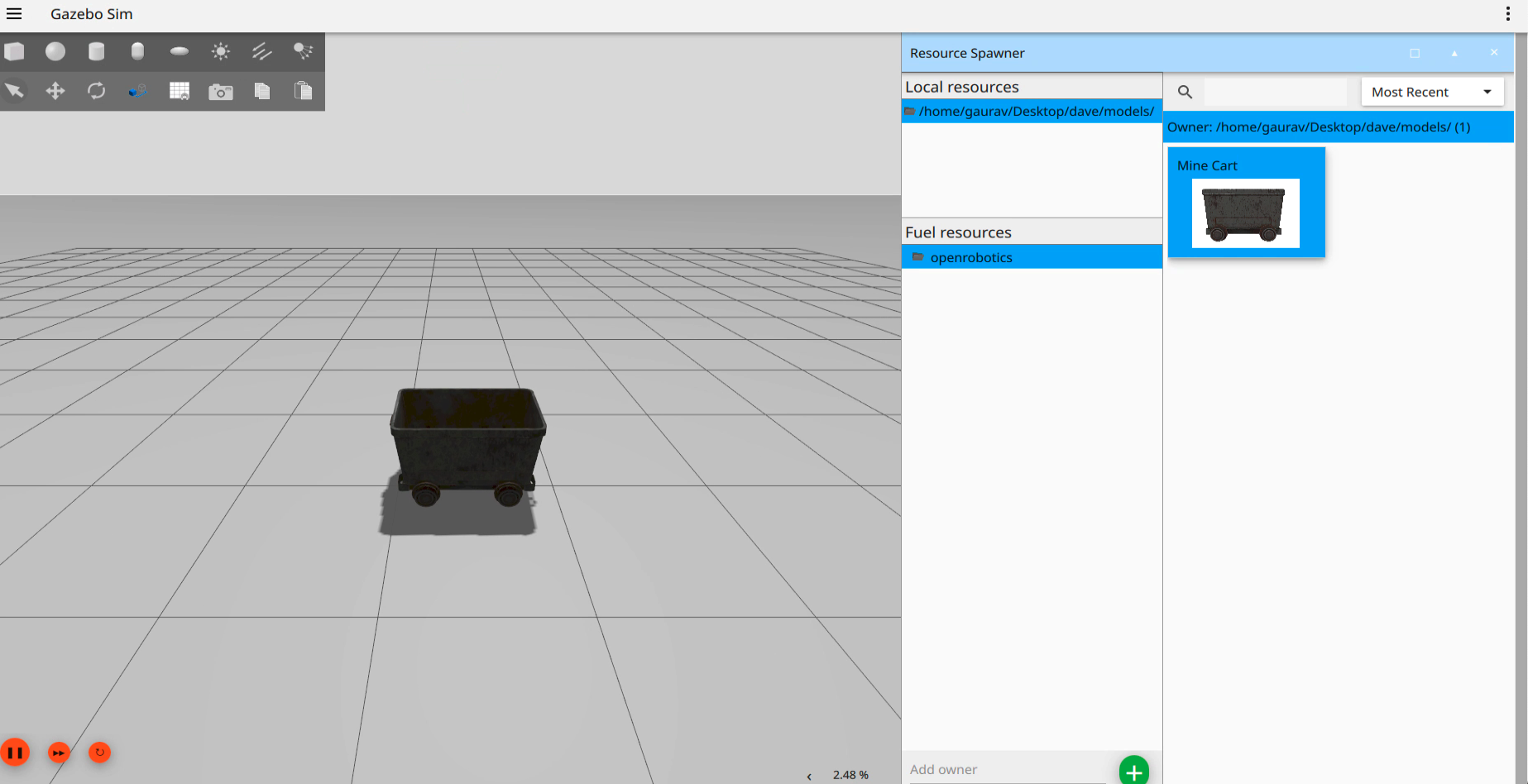
Open Resource Spawner in Gazebo GUI and select the local model to place it. Include <uri>model://my_object</uri> in a world SDF to reuse it. The HTTPS URI from a Fuel page's SDF snippet also works and needs a first-use download. Retain model files and their licenses for offline experiments.
Publish a model to Fuel
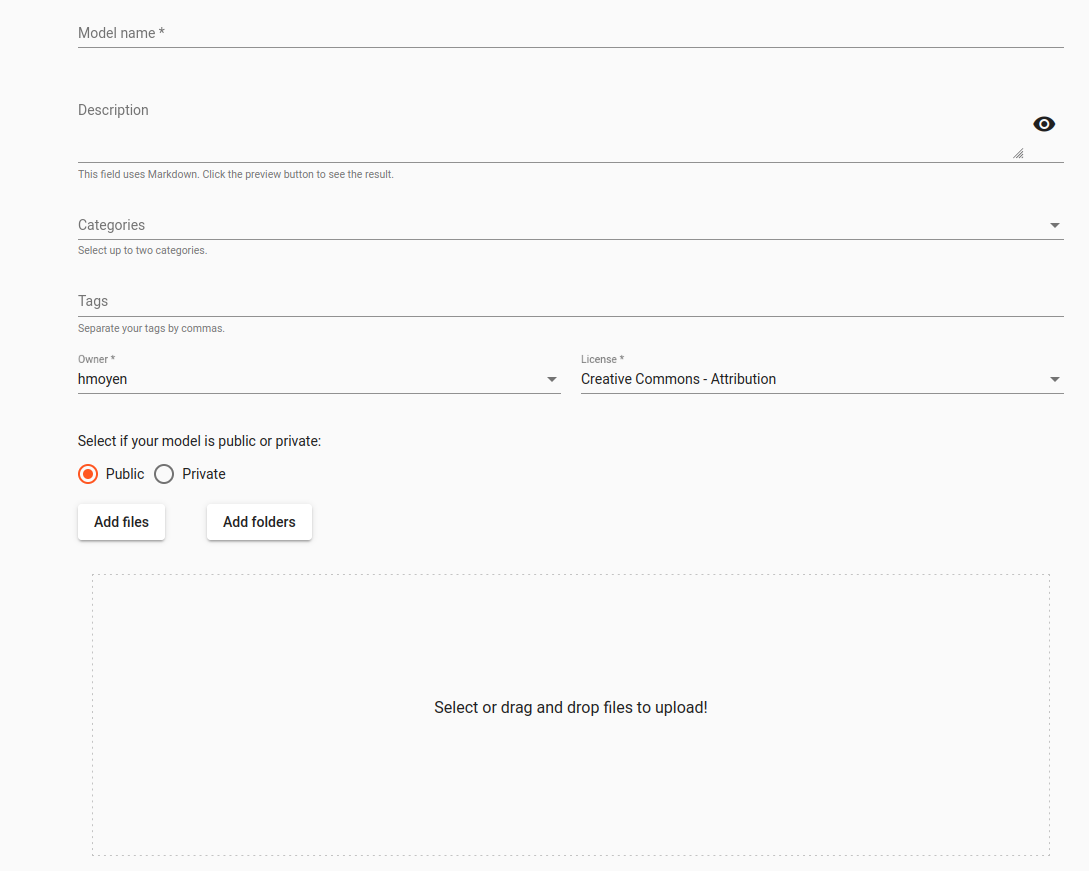
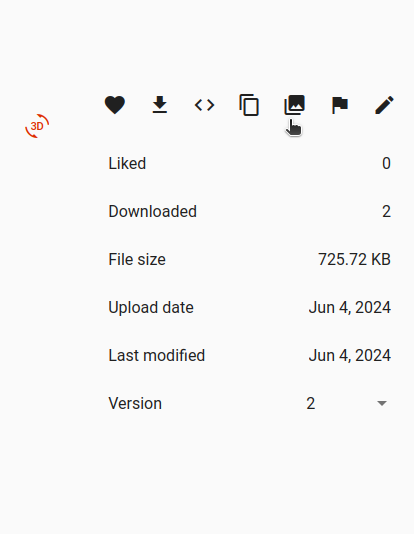
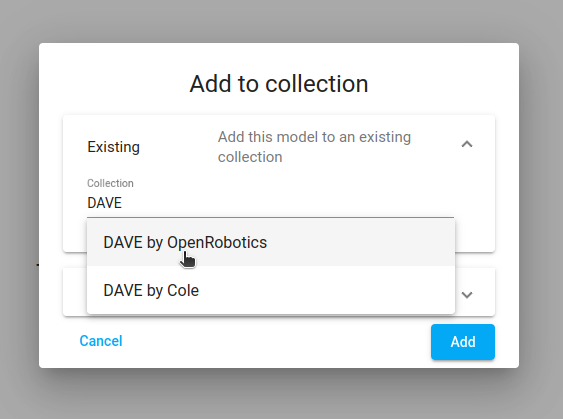
Sign in to Gazebo Fuel and open model creation. Enter a name, description and license; upload model.sdf, model.config and referenced meshes/materials. Download the published model and check that its files have no external local-path dependencies. Add it to a collection as needed.
Select plugin filenames and classes available in the installed Jetty environment. Follow the current models in Add a robot to connect buoyancy, hydrodynamics, thrust and sensors.
Import and publish Fuel models
Figures and videos: POSIM Notion Wiki. See Citation and licenses for DAVE documentation attribution. Use this page's code blocks for execution commands and topic names.