macOS: Docker + RDP
On an Apple Silicon Mac, run the ARM64 POSIM image and connect to its Linux desktop through Remote Desktop (RDP). Gazebo and terminal windows run inside that desktop. This guide does not cover Intel Mac emulation.
1. Install Docker and an RDP client
Install Docker Desktop for Mac and start it. Install Microsoft's Windows App for macOS as the RDP client.
Open the macOS Terminal and check:
uname -m
docker version --format '{{.Server.Version}}'
Apple Silicon reports arm64. The second command should print the Docker server version.
2. Download and start POSIM
Docker automatically selects the ARM64 image:
docker pull ioeslab/posim:latest
docker run -d --name posim --shm-size=1g \
  -p 127.0.0.1:3389:3389 \
  --mount type=volume,source=posim-data,target=/work \
  ioeslab/posim:latest
docker exec -u root posim chown docker:docker /work
The RDP port is available only on this Mac. Save your own models and recordings in /work to retain them in the posim-data volume. The Docker environment guide covers image versions, source builds and container replacement.
3. Connect to the Linux desktop
In Windows App, add a PC with address 127.0.0.1:3389 and connect. At the xrdp login screen, choose Xorg and sign in with username docker and password docker.
The image uses this local development account. Inside the Linux desktop, open a terminal and change its password:
passwd
For POSIM commands, use terminals inside this Linux desktop. Keep the macOS Terminal for managing Docker. Prepare your terminals explains this distinction and the workspace location.
4. Stop, restart and choose examples
Closing the RDP window does not stop the simulation. End the running launch command with Ctrl+C first. From the macOS Terminal:
docker stop posim
docker start posim
Reconnect through Windows App after starting the container. Linux GUI rendering uses software rendering; complex scenes can be slow. For sonar, start with CPU after building and checking the sonar packages. Metal is available to native macOS processes, not this Linux container. The camera and pressure examples are useful first checks.
5. Launch the demo world
In a terminal inside the RDP desktop, run the final installation check:
source /opt/ros/lyrical/setup.bash
source /home/docker/posim_ws/install/setup.bash
ros2 launch posim_demos posim_world.launch.py \
  world_name:=posim_ocean_waves headless:=false
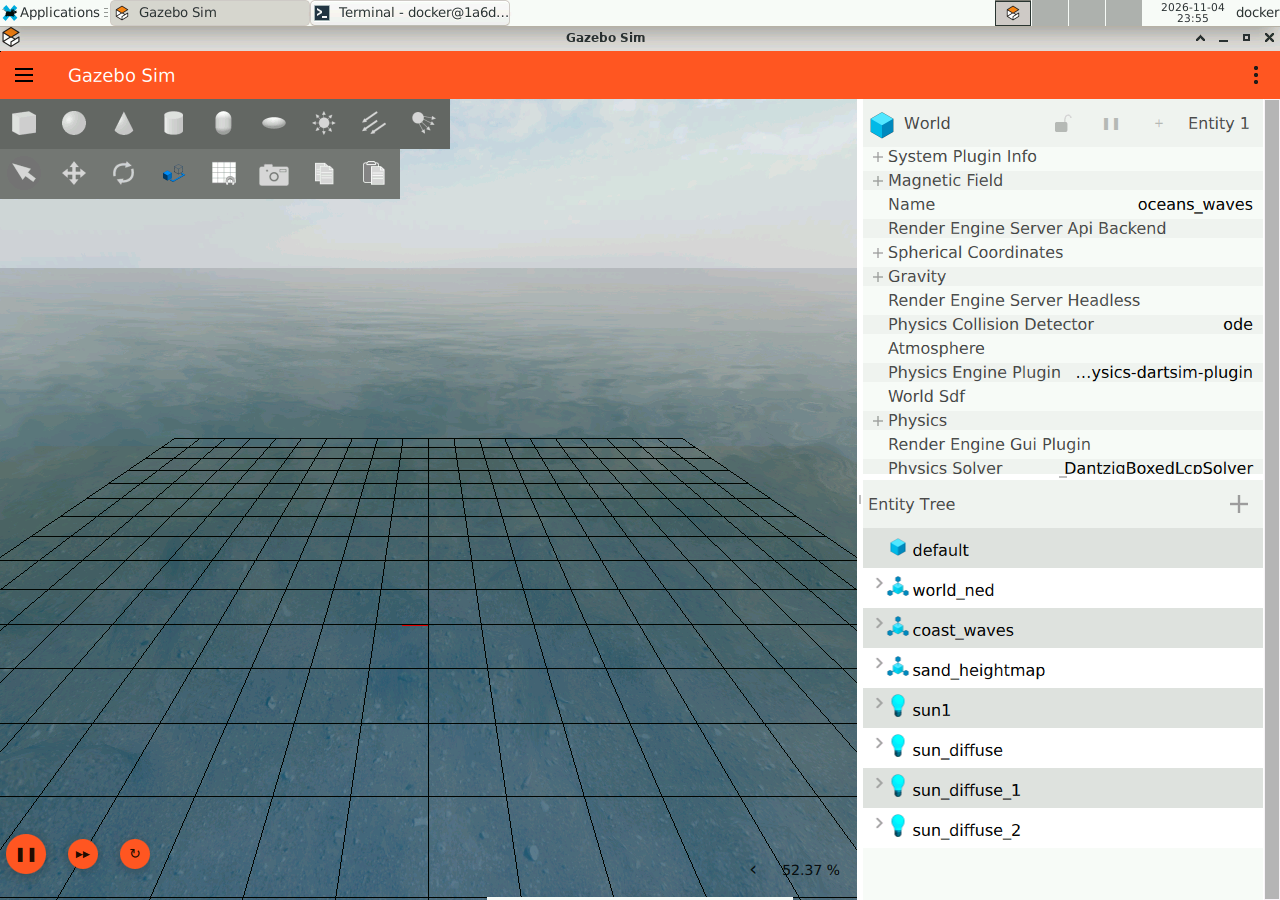
Gazebo should display the ocean world inside the remote desktop. Leave the terminal open while it runs. Press Ctrl+C before continuing to your first robot simulation.